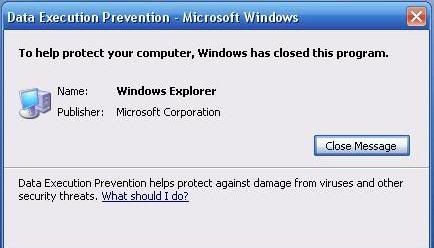
“Data Execution Prevention” error message in Windows XP SP2


Problem:

Data Execution Prevention – Microsoft Windows
To help protect your computer, Windows has closed this program.
Name: program name
Publisher: program publisher

Data Execution Prevention helps protect against damage from viruses or other threats.


Solution:

To avoid this behavior, contact your program vendor to see if an update is available that enables that program to work correctly with DEP. If not you can use the workaround below:-

If your computer is set to apply DEP to all programs and services, the DEP error message will have a Change Settings button.

  1. When you receive the error message that is mentioned in the “Symptoms” section, click Change Settings.
  2. Click to select the check box next to the program, and then click Apply.
  3. When you are prompted to restart your computer, click OK two times, and then restart your system.

You can also add an exception for the program by using System Properties in Control Panel. To do this, follow the steps below:

  1. Click Start, click Run, type sysdm.cpl, and then click OK.
  2. Click the Advanced tab, click Performance, and then click Settings.
  3. In Performance Options, click the Data Execution Prevention tab, and then click Add.
  4. In the Open dialog box, locate and then click the program.
  5. Click Open, click Apply, and then click OK. When you are prompted to restart your computer, click OK.

When your computer is configured to turn on DEP for essential Windows programs and services only, you cannot add an exception for a program. Also, if the DEP error message continues to appear, a program may be installed that extends Windows functionality. This program may be installed so that it causes a DEP problem in an important Windows program or service.

If this behavior is recent and has not occurred before, you may be able to prevent the DEP error message by removing recently installed programs.

or

  • Right-Click on My Computer>Properties
  • Click on Advanced>Settings [Settings under Performance Section]
  • Click on Data Prevention Execution Tab
  • Select "Turn On DEP for all programs and services except those I select" option which is the second option
  • Then click on "Add.." button, browse and locate explorer.exe [c:\WINDOWS\explorer.exe]
  • Click on Apply then click Ok to save changes.
This should solve your problem. All the best!

Training In Career academy


Tailor your career education and schedule with our Microsoft, Cisco and CompTIA, Graphic and office automation online training programs. At Career Academy, you will receive top quality training, with real-world applicability from the most reputable eLearning provider in the U.S. Looking to shape up your career on a higher note? If so Microsoft Certification would be the best choice to make. Microsoft offers various kinds of certification courses like MCSE and so on for various Microsoft platforms. Information regarding all Microsoft trainingcan be got @careeracademy.com. This is the only place where one can get all useful resources to complete their certification. So, friends expertise in Microsoft Certification through Career Academy.


Career Academy offers computer training courses via multimedia On-Demand video lectures, hands-on lab simulations, testing modules and around the clock LIVE mentoring. Like online learning one-on-one with a professor, each computer class is presented in full motion video and audio allowing students to see all the steps, hear the detailed explanations, and perform the tasks.